How to Get Your 3D Printer Back Online: Detective Fixes
The excitement of preparing a new 3D print can quickly turn to frustration when your machine stubbornly reports as “offline.” This isn’t just an inconvenience; it’s a barrier to production, whether you’re working on a critical prototype or a personal project. When your 3D printer shows offline, it typically means there’s a communication breakdown: the printer itself may be powered on, but it’s not effectively communicating with your PC, control software, or network via its usual connection methods—be that USB, Wi-Fi, Ethernet, or a cloud service. Your slicer or cloud management platform simply can’t “see” the device.
This comprehensive guide is designed to empower you with a systematic approach to diagnose and resolve these frustrating 3D printer connection issues. We’ll walk you through a step-by-step troubleshooting process, ensuring you understand exactly how to get your printer back online and resume your printing workflow. From basic checks to advanced fixes, we’ll cover the full spectrum of potential culprits, including:
- Physical and cabling integrity: Ensuring all wires are correctly connected and undamaged.
- Network configuration: Addressing common 3D printer network problems with Wi-Fi, Ethernet, and IP addresses.
- Software, driver, and firmware discrepancies: Resolving fixing 3D printer errors rooted in digital misconfigurations.
- Advanced and model-specific challenges: Diving into more complex scenarios unique to certain printer ecosystems.
- Stability and prevention: Strategies to maintain a consistent connection and avoid future communication failures, ultimately preventing further troubleshooting print failures.
By the end of this article, you’ll be equipped with the knowledge to bring your 3D printer back into the digital fold, ready for its next job.
Getting a 3D printer back online often feels like a digital scavenger hunt. One moment, you are ready to send your next intricate design for rapid prototyping, and the next, your slicer software or cloud service reports your printer as “offline.” This status simply means your printer is powered on but not communicating with your computer, control software, or network. The frustration is understandable, especially when you have a critical project waiting, perhaps exploring the possibilities of large-scale 3D printing or experimenting with new materials like PLA filament. This comprehensive guide will walk you through a systematic approach to diagnose and resolve these common connectivity issues.
We will begin with the most basic checks, moving progressively to more complex network and software configurations. This initial phase of troubleshooting is crucial for anyone trying to figure out how to get their printer back online, preventing unnecessary deep dives into advanced settings when a simple fix might be all that is needed.
1. Initial Diagnostics: Quick Checks Before Deep Troubleshooting
Before delving into complex network configurations or software updates, it is essential to rule out the simplest culprits. Many 3D printer connection issues stem from basic oversights. A methodical approach here can save significant time and effort.
First, verify the power and hardware basics. Is the printer’s power switch in the ‘on’ position? Double-check that the power cable is firmly seated both in the printer and in the wall outlet or power strip. A loose connection can cause intermittent power, leading to an offline status. If you are using a USB cable for direct connection, ensure it is firmly connected to both the printer and your computer. Try plugging the USB cable into a different port on your computer, or ideally, test with a different, known-good USB cable. Cables can degrade over time or suffer internal damage that is not always visible. For printers connected via Ethernet, confirm the cable is securely locked into both the printer and your router or switch. Look for the link lights on both the printer’s Ethernet port and the corresponding port on your network device; these lights typically indicate active data transmission.
Next, confirm the status on your printer’s screen or LEDs. Modern 3D printers often feature LCD screens that display crucial information such as network status, IP address, or error codes. Look for any Wi-Fi icons, network status indicators, or explicit messages like “offline” or “network error.” These visual cues are invaluable first clues. Some printers have status LEDs that change color or blink patterns to indicate different states—consult your printer’s manual to interpret these.
Finally, perform simple reboots. This age-old IT solution often resolves transient glitches. Power-cycle your 3D printer by turning it off, waiting for about 10-15 seconds, and then turning it back on. Do the same for your computer. If your printer relies on a network connection, restart your router and any network switches involved. This process clears temporary memory states and re-establishes network connections, frequently resolving communication breakdowns without further intervention. The principle here is clear: rule out simple causes first to avoid chasing complex fixes unnecessarily.
2. Tackling 3D Printer Network Problems: Wi‑Fi, Ethernet, and IP Addresses
If the basic checks did not resolve the issue, the next most common culprit for an offline 3D printer is a network problem. This section focuses on diagnosing and fixing 3D printer errors related to Wi-Fi, Ethernet, and IP configurations, which are crucial for many modern additive manufacturing setups.
For Wi-Fi checks, start by confirming the printer is connected to the correct SSID (your Wi-Fi network name) and that the password entered on the printer is accurate. A single mistyped character can prevent a connection. Access the printer’s menu to view its network settings. If available, check the signal strength displayed on the printer itself. A weak signal, often indicated by a low percentage or few bars, can lead to intermittent connectivity or an “offline” status. Consider moving your printer closer to the Wi-Fi router or repositioning the router for better coverage, especially if your printer is situated in an area with potential signal obstructions. For printers equipped with external Wi-Fi antennas, verify that the antenna is securely attached and undamaged. A loose or broken antenna significantly degrades signal reception.
If your printer uses an Ethernet connection, ensure the cable is fully seated on both ends. Just like with Wi-Fi, checking the activity LEDs on your router or switch provides immediate feedback on whether the physical connection is active. No lights usually indicate a cable issue or a port problem.
Understanding your printer’s IP address and router verification is paramount for network-connected 3D printers. Locate your printer’s IP address from its network settings menu. This unique numerical address identifies your printer on the network. Next, log into your router’s administration interface (usually via a web browser) and confirm that the printer appears in the connected devices list. This step verifies that your router acknowledges the printer’s presence on the network. Be vigilant for signs of IP conflicts, where two devices mistakenly claim the same IP address. This can cause both devices to behave erratically or appear offline. If you suspect a conflict, you might need to release and renew the printer’s IP address or, for advanced users, assign a static IP address or DHCP reservation within your router to ensure it always receives the same IP.
Finally, consider firewall and network mode issues. Your router’s firewall might be blocking your printer’s IP address or specific ports required for communication. Temporarily disabling the firewall (with caution and for testing purposes only) can help determine if this is the cause. Many modern 3D printers, especially those with cloud integration, offer different network modes, such as local-only / LAN mode vs cloud mode. Verify that your printer is set to the appropriate mode for the service or application you are attempting to use. For those utilizing cloud ecosystems like Anycubic Cloud, Bambu Lab, PrusaConnect, or Ultimaker Digital Factory, ensure the printer is configured to reach the correct server region and that your network isn’t blocking access to these external services.
3. Software and Firmware: Fixing 3D Printer Errors That Cause Disconnection
Even when your 3D printer is physically connected and powered, software and firmware issues can lead to an “offline” status. This section explores how to troubleshoot these digital hurdles, which are frequent sources of 3D printer connection issues.

Begin by examining your host or control software configuration. Whether you are using a dedicated slicer/control application like Creality Print, Bambu Studio, PrusaSlicer/Connect, or a platform like OctoPrint, ensure the correct connection type is selected. This means specifying if you are connecting via USB, network (Wi-Fi/Ethernet), or a cloud service. If connecting over the network, verify that the IP address entered in your software precisely matches the printer’s actual IP address found in its menu. A discrepancy here is a common reason for software to report the printer as offline, as it is trying to communicate with the wrong address. For USB connections, confirm the correct COM port and baud rate are selected in the software. These settings dictate how your computer communicates serially with the printer.
Next, investigate drivers and operating system (OS) conflicts. Printers, especially those connecting via USB, often require specific USB/serial drivers to be installed on your computer. This is particularly true for Windows and some macOS configurations. Ensure these drivers are properly installed and up to date. Sometimes, a recent OS update can inadvertently alter permissions, modify network settings, or replace generic drivers with incompatible versions, causing your printer to lose connection. Check your OS’s device manager (e.g., Device Manager on Windows) to see if the printer’s serial port is recognized correctly and without any error symbols.
Firmware issues are another significant cause of disconnection problems. Firmware is the embedded software that controls your 3D printer’s hardware. Outdated or buggy firmware can lead to intermittent offline status, connection drops, or outright refusal to connect. Check for firmware updates from your printer manufacturer’s website; these often include fixes for known connectivity issues. If your printer’s firmware or settings appear corrupted, consider performing a factory reset (always following the manufacturer’s specific instructions to avoid damage). After a factory reset, you will need to reconfigure your printer’s network settings and any custom parameters.
It is crucial to understand that even with a perfect physical connection, misconfigured software, outdated drivers, or firmware bugs can make your printer appear offline to your computer or cloud service. This underscores the importance of systematically troubleshooting both the hardware and software layers when your 3D printer is showing offline. Resolving these issues will not only get your printer back online but also ensure a more stable experience for future projects, whether you’re engaging in complex metal binder jetting vs dmls comparisons or simply printing a model with a Castable SLA 3D Printing Resin. You might even find insights into choosing the right SLA 3D printer for future needs.
This concludes the initial and intermediate troubleshooting steps for getting your 3D printer back online. In the next section, we will delve into more advanced scenarios and persistent issues, providing solutions for stubborn offline statuses and discussing preventive measures to maintain consistent connectivity.
Your 3D printer, a marvel of modern engineering, transforms digital designs into tangible objects. Yet, this intricate dance between hardware, software, and network connectivity can falter, leading to the dreaded “offline” status. While the initial diagnostics—checking cables, power, and performing simple reboots—are crucial foundational steps, truly mastering how to get your 3D printer back online requires a deeper dive into its communication protocols and digital ecosystem. It’s about moving beyond the easy clues and becoming a true system architect, understanding the complex interplay that ensures your machine is not just powered, but fully engaged in the additive manufacturing process.
Deep Dive: Unraveling 3D Printer Network Problems
When your 3D printer claims it’s offline, especially in networked setups, the problem often lies in a subtle miscommunication rather than a blatant disconnection. While you’ve confirmed the basic Wi-Fi credentials, the nuances of network stability and addressing are paramount.
Many printers operate predominantly on the 2.4GHz Wi-Fi band, which, while offering greater range, is susceptible to interference from common household devices like microwaves, cordless phones, and even neighboring Wi-Fi networks. Understanding this can inform printer placement or the strategic use of signal boosters. For high-throughput applications or environments with significant wireless noise, an Ethernet connection remains the gold standard for reliable connectivity, providing a dedicated, shielded pathway for data. This robust link is especially critical for continuous operation, such as when monitoring long prints remotely or integrating with professional tools like the ATO Lab for material development.
Beyond signal strength, the way your printer obtains its network address (its IP address) is a frequent source of intermittent issues. Most home networks use Dynamic Host Configuration Protocol (DHCP) to assign IP addresses automatically. While convenient, a router reboot can sometimes assign your printer a new IP, breaking existing connections in your slicer or control software. To prevent this, implement a DHCP reservation in your router settings. This “reserves” a specific IP address for your printer’s unique hardware identifier (MAC address), ensuring it always receives the same address. This is far more robust than manually assigning a static IP on the printer itself, which can lead to IP conflicts if the router later tries to assign that same address to another device. Such conflicts are notorious for causing erratic behavior and making devices appear offline. Your router’s administrative interface will typically show a list of connected devices, making it easier to identify current IP addresses and manage DHCP reservations.
Furthermore, network firewalls—both on your router and your computer—can inadvertently block your printer’s communication. Modern 3D printers often utilize specific ports for web interfaces (like OctoPrint), cloud services (e.g., Bambu Lab’s cloud or PrusaConnect), or direct network printing. Ensure these ports are not blocked. For cloud-based ecosystems, verify that your printer is configured for the correct server region and that your network allows outbound connections to those specific cloud servers.
The Brain of the Operation: Software, Drivers, and Firmware Depth
Even with a flawless network connection, software and firmware glitches can mimic an offline state, leading to persistent 3D printer connection issues. The key here is understanding the distinct roles of each component.
Your host or control software (e.g., Cura, PrusaSlicer, Bambu Studio, OctoPrint) is the primary interface for sending commands and monitoring your printer. It needs to know how to talk to the printer – via USB serial communication, network IP, or a cloud API. For USB connections, confirming the correct COM port and baud rate is critical. These settings dictate the speed and pathway of data flow. Incorrect settings are akin to speaking a different language or dialing the wrong number. On Windows, verify your printer appears correctly in Device Manager, typically under “Ports (COM & LPT)” or “Universal Serial Bus controllers,” without any yellow exclamation marks. These flags indicate missing or corrupted drivers. Specific USB-to-serial chipsets (like FTDI or CH340) often require manufacturer-specific drivers, which are usually available on the printer manufacturer’s support page.
Operating system updates can sometimes disrupt these delicate connections by altering USB port behaviors, tightening security permissions, or sidelining older drivers. If issues arise after an OS update, re-installing drivers or checking for new driver versions specifically compatible with your OS can resolve the problem.
Firmware, the low-level software embedded directly onto your printer’s control board, dictates its fundamental operations. Outdated or buggy firmware is a common culprit for intermittent disconnections, failed prints, and even thermal runaway errors. Regularly checking for and applying firmware updates from your printer’s manufacturer is paramount. These updates often include critical bug fixes, stability improvements, and new features. However, proceed with caution: ensure you download the correct firmware for your specific printer model and follow the manufacturer’s update instructions precisely. A botched firmware update can render your printer inoperable. In severe cases, a factory reset (if supported by your printer) can clear corrupted settings, offering a clean slate to reconfigure network parameters and connection types.
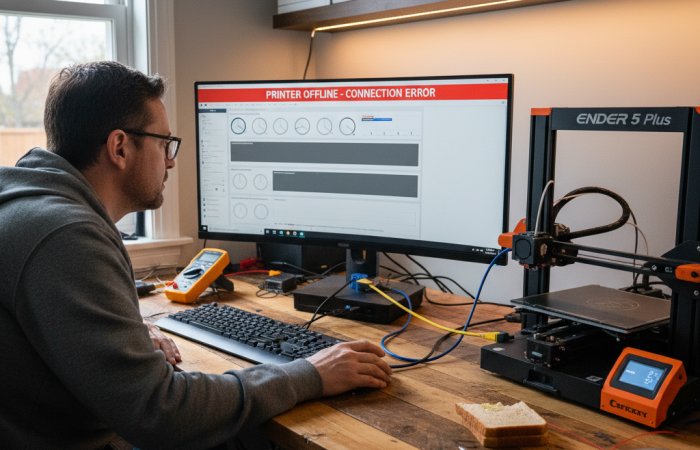
The image above vividly captures the essence of this investigative process. Just as our young detective peers intently at the screen, analyzing the digital “clues” within the software, you too must carefully examine your slicer settings, connection types, and driver statuses. The connection cable shown signifies the physical link, but it’s the invisible digital dialogue that truly determines whether your 3D printer is showing offline or ready to spring to life.
Advanced Troubleshooting for Stubborn Cases
When standard fixes fail, it’s time for deeper diagnostics. Persistent offline status, especially for printers integrated into cloud ecosystems like PrusaConnect or Bambu Lab’s cloud, often points to issues beyond the local network.
For cloud-bound printers, authentication tokens, regional server mismatches, or temporary service outages can lead to an “offline” display even when your printer has a perfect local network connection. A robust strategy involves unbinding the printer from your cloud account (if supported), logging out and back into the cloud service, and then re-adding or re-binding the printer. This process refreshes authentication tokens and ensures a clean connection to the cloud servers.
Leveraging system logs is another powerful, albeit advanced, troubleshooting technique. Your computer’s Event Viewer (Windows) or Console app (macOS) can reveal driver errors, USB enumeration failures, or network service issues that correlate with your printer going offline. Many advanced printers also offer internal logging, often accessible via a web interface or USB drive, which can provide granular data on connection attempts, errors, and power cycles. When contacting manufacturer support, providing these detailed logs, along with screenshots of your network configurations and any error messages, significantly aids in diagnosing model-specific bugs or hardware failures.
Sustaining Connectivity: Beyond the Fix
Getting your printer back online is only half the battle; maintaining its operational stability is crucial for avoiding future troubleshooting print failures. Intermittent connectivity—whether from weak Wi-Fi, a flaky USB cable, or an overloaded network—can have devastating effects on prints, leading to mid-print stops, layer shifts, inconsistent extrusion, or even thermal runaway errors if the control system loses communication with critical components.
To truly prevent these issues, prioritize a stable printing environment:
- Network Hardening: Whenever possible, use a wired Ethernet connection. If Wi-Fi is essential, ensure the printer is within optimal signal range, free from electromagnetic interference, and consider a dedicated 2.4GHz network for IoT devices to minimize congestion on your primary network. Implementing DHCP reservations is a non-negotiable step for any networked 3D printer.
- Power Stability: Connect your printer to a quality surge protector or, ideally, an Uninterruptible Power Supply (UPS). This protects against voltage fluctuations and provides backup power for brief outages, preventing unexpected shutdowns that could corrupt ongoing print jobs or even the printer’s firmware.
- Quality Cabling: For USB connections, use the shortest, highest-quality shielded USB A-B cable possible. Avoid passive USB hubs, which can introduce power or data integrity issues.
- Proactive Updates: Establish a routine for checking and applying firmware and software updates. Manufacturers frequently release patches that enhance stability, improve connectivity, and fix known bugs.
- Network Awareness: Be mindful of other network-heavy activities during critical print jobs. Large file downloads or heavy streaming can saturate your network bandwidth, potentially causing delays or dropped packets to your printer.
By embracing these advanced strategies, you transition from merely reacting to offline events to proactively safeguarding your 3D printer’s uptime. This holistic approach ensures not just initial connectivity, but sustained, reliable performance, empowering you to tackle complex print jobs with confidence and minimize frustrating interruptions.
Conclusion
The frustration of a 3D printer stubbornly showing “offline” can halt creativity in its tracks. Yet, as you’ve discovered, deciphering the cause of 3D printer connection issues is a systematic process, not a mysterious one. By methodically working through physical connections, network settings, software configurations, and finally, advanced diagnostics, you’ve gained the expertise to tackle troubleshooting print failures head-on.
Remember the critical steps: always start with the basics like power and cabling, then move to checking your network (Wi-Fi, Ethernet, and IP addresses), ensure your host software and firmware are updated and correctly configured, and only then delve into complex issues like IP conflicts or cloud binding problems. This structured approach ensures you efficiently solve how to get your printer back online, minimizing downtime.
To maintain a smooth, uninterrupted workflow, embed preventive practices into your routine. Stable power, a robust network, and regular firmware and software updates are your best defense against future disconnections. Documenting your printer’s network settings can also save significant time if issues arise.
Frequently Asked Questions
What exactly does “offline” mean for my 3D printer?
When your 3D printer shows “offline,” it means it’s not currently communicating with your computer, control software, or network. While the printer is likely still powered on, it’s unable to receive print commands, send status updates, or interact with other devices. It’s essentially like being disconnected from the internet.
Why is restarting my printer, computer, and router often the first troubleshooting step?
Restarting these devices performs a “soft reset,” which can clear out temporary software glitches, refresh network connections, and re-establish communication protocols. Many minor hangups or conflicts that prevent devices from “seeing” each other can be resolved with a simple reboot, making it an essential first step in any troubleshooting process.
How do I find my 3D printer’s IP address?
Most 3D printers with network capabilities (Wi-Fi or Ethernet) display their IP address directly on their onboard screen. Look for it in the “Network Settings,” “Connectivity,” or “About” menu. This series of numbers (e.g., 192.168.1.100) is your printer’s unique address on your local network, crucial for network-based connections.
What is “firmware” and why is keeping it updated important for connectivity?
Firmware is the specialized software embedded in your 3D printer that controls all its basic operations, from motor movements to network communication. Manufacturers regularly release new firmware versions to fix bugs, improve stability, add features, and resolve connectivity issues. Regularly checking for and applying these updates can prevent many common “offline” problems.
What if my printer appears online but prints still fail or stop mid-way?
If your printer is online but prints are consistently failing or stopping, the issue might stem from an unstable connection (e.g., weak Wi-Fi, a flaky USB cable, or an overloaded network). It could also point to problems with the print file, slicing settings, or even mechanical issues.
When should I consider a “factory reset” for my 3D printer?
A factory reset is an advanced troubleshooting step and should be considered a last resort. It’s typically recommended if your printer consistently goes offline, experiences persistent software glitches, or if all other troubleshooting steps have failed. Remember that a factory reset will revert all settings to their original state, meaning you’ll need to re-configure Wi-Fi, calibration, and any other custom preferences. Always follow your manufacturer’s specific instructions.
How can I prevent my 3D printer from going offline in the future?
To minimize future offline incidents, adopt a few best practices: ensure your printer has a stable power source (like a surge protector), use a strong and reliable network connection (Ethernet is often more stable than Wi-Fi), keep your printer’s firmware and control software updated, and consider assigning your printer a static IP address in your router to prevent IP conflicts. These proactive steps significantly enhance your printer’s long-term stability.
Related Posts